How to move from Liberty to ResaleOS
The short version: you don't have to do this. Our team moves Liberty shops to ResaleOS for you, every week. You add us to Liberty for a morning, we bring everything across, and you're taking sales on ResaleOS by lunch. That's the whole story.
The easy way — let us do it
Book a free 15-minute call. We'll walk you through it together: you add one of our team members to Liberty (the same way you'd add a new employee), and we do everything else — every consignor, every item, every balance, every photo. Free with any paid ResaleOS plan, and you don't have to learn a single technical thing.
Book a free 15-minute call
Pick a quiet morning that works for you. Mondays and Tuesdays before the shop gets busy are best. You don’t need to prep anything.
On the call we'll ask three things: how big your shop is, whether your Liberty runs on the computer at the shop or on Liberty Cloud, and whether you want item photos brought across. That's it.
Add one of our team members to Liberty
Exactly the same as adding a new employee. We send a one-page sheet with screenshots so you can’t go wrong. It takes about a minute.
In Liberty: open the Inventory Module → Setup → Security → Maintain Users → Add.
Type the name and email we give you. Give the new user manager-level access (so we can see consignors, items, sales and reports). Save. Done.
Using Liberty on the computer at your shop? No problem. Instead of adding us as a remote user, we'll just hop on a short Zoom call and you'll share your screen with us while we sign in together. It's actually the easiest way to do it.
On Liberty Cloud? One extra thing to send us. The user you just added lets us sign in to Liberty — but only after we've reached your cloud server. To get there from our office, we also need your Remote Desktop details: the server address (something like cloudXX.resaleworld.com) and the Windows username and password your computers use to “connect” each morning before Liberty opens.
Not sure where to find them? Easiest path: call Resaleworld support (the number on your monthly invoice) and say “I've added a new Liberty user — please send them the Liberty Cloud / Remote Desktop connection details.” They do this all the time and usually email it across in a few minutes.
Please don't give us your own password. Always add us as a new user. That way you can see exactly what we did, and you can remove us with one click when we're done.
Have coffee while we do the work
A real person on our team — not a script — logs in and brings everything across. You can keep going about your morning.
Here's what comes across, with no input from you:
- Every consignor, with their contact details, splits and the exact balance you owe them today.
- Every active item on your floor, with its photos.
- The full history of what's sold, when, to whom, and how much each consignor earned.
- Every payout and check you've written.
- Notes, custom fields, anything you tracked in Liberty.
We'll send you a quick text or email when we're ready for you. Usually around lunchtime.
Hop back on a call — we check the numbers together
We put your Liberty numbers and your new ResaleOS numbers side by side. You confirm they match. Then you remove our access, and you’re live.
We check four things with you, on screen:
- Total number of consignors
- Total number of active items on the floor
- Total dollars you owe consignors today
- Your year-to-date sales
Each of those should match Liberty exactly. If anything looks off, we fix it before you go live — nothing leaves this call until you're happy.
Once you say “looks good”, you go back into Liberty and remove our user. You're now live on ResaleOS. Most shops do this before lunch.
Not ready to switch fully? That's fine.
You can keep Liberty running as your main system for a week or two while you get comfortable in ResaleOS. When you're ready to switch fully, we do a quick top-up on a Sunday night and you open Monday morning on ResaleOS. You never have a day where the shop is offline.
The self-serve version, in plain English
Some shop owners like doing things themselves — totally fair. Here's how to pull your Liberty data and send it to us. Plan on about an hour or two in front of the Liberty computer. You don't need to be technical; you just need to be patient with a few menus.
Make a fresh backup of Liberty
In Liberty, open the Inventory Module, go to Setup, then Backup Utility, then click the Backup tab.
Tick the box for Database. If you want your item photos to come across too (most people do), also tick Images. Pick a place to save the file (your desktop is fine), then click the Backup button.
Liberty will save a single file. Keep it somewhere safe — you'll be sending it to us in step C. (And honestly, it's good to have anyway.)
Run a handful of reports and save each as a spreadsheet
In Liberty, open the Reports Module. For each report below: click the report name, click Preview, then click Export. When Liberty asks what format you want, choose Comma-separated values (CSV) — that just means “a spreadsheet” and it's what we need. Save it to the same folder as your backup.
The six reports to run
- Account List Full Detail — your consignor list, with contact details.
- Item Description With User Fields — every item currently on your floor.
- Accounts Payable by Account — what you owe each consignor today.
- Posted Items Detail by Account — everything that has sold.
- Check / Payout Detail Extended — a record of every payout you've made.
- Transaction Detail — your full history of money in and out.
Don't worry if the names look slightly different on your screen — they're all in the Reports module and we can help you find them on the call. If your shop also uses Liberty's web or retail features, mention it during the call and we'll send a quick list of extras.
Try to run them all in the same hour. Each report is a snapshot of that moment. If you run consignors on Monday and balances on Wednesday, the numbers won't quite match — not a bug, just two different days. Doing them back to back after close keeps everything tidy.
Put everything in one folder
Make a new folder on your desktop called something like liberty-export. Drag the backup file from step A and all the spreadsheets from step B into it. That's everything we need.
In the next step you'll pick a path: upload the spreadsheets into ResaleOS one by one yourself, or zip the whole folder and email it to us. (We'll walk you through both — pick whichever feels easier.)
Now pick one: upload it yourself, or send it to us
With your folder ready, you have two choices. Either one is totally fine — pick whichever feels easier.
Upload them yourself
Sign in to your ResaleOS account. You'll upload your spreadsheets one at a time, on the matching page for each one. No zipping needed — keep the loose CSVs you saved in step B.
Shortcut — do all three at once: Already signed in? Open the one-page importer — drag every Liberty file in together and our AI matches each column for you. The per-page steps below still work, but the importer is faster.
- Consignors: open Accounts, click the ⋯ menu in the top-right, pick Import from Excel/CSV, and drag in your Account List Full Detail spreadsheet. ResaleOS uses AI to match up the columns, you eyeball them, click Import.
- Inventory items: open Products, same ⋯ → Import from Excel/CSV, drag in your Item Description With User Fields spreadsheet.
- Sales history (optional): open Sales, same ⋯ → Import from Excel/CSV, drag in your Posted Items Detail by Account spreadsheet. Most shops skip this — Liberty stays as the historical record.
Your Liberty backup file and the photos inside it can't be uploaded through the app — email those to us (see the other card) and we'll re-host the photos onto your items.
Don't have a ResaleOS account yet? Create one in 30 seconds — card required at signup.
Or send it to us and we'll do it
Zip the folder first. On Windows: right-click the folder, choose Send to → Compressed (zipped) folder. On Mac: right-click the folder, choose Compress. You'll end up with one file ending in .zip.
Email it to info@resaleos.co with the subject line Liberty migration. We handle the consignor, inventory and sales imports for you, re-host the photos, and reply when it's done — usually within a few hours. Same price (free), zero clicking on your end.
If the zip is too big for email, reply to our welcome email and we'll send a private upload link.
Either way, we hop on a quick call to check the numbers
Whether you uploaded yourself or sent the zip our way, we always finish with a short call to walk through ResaleOS and confirm your numbers match Liberty exactly. We won't mark you as “live” until you're happy.
The questions we get asked most
How long does it take?
For most shops, a single morning. You add us to Liberty in the morning, you're selling on ResaleOS that afternoon. Bigger shops with multiple locations might take a full day — but the work is on us.
Will my consignors notice?
They shouldn't. Their balance is the same, their items are the same, their payout schedule is the same. We tell each consignor by email about their new self-serve portal if you want — completely optional.
What about item photos?
They come across. If they're inside Liberty, we move them to ResaleOS so they show up on your product pages and on eBay, Etsy and any other place you list. You don't have to find them.
Will my books still match?
Yes. We confirm that the dollar amounts in ResaleOS match Liberty to the penny before you go live. Your bookkeeper sees no surprises.
What about my Liberty data after?
It stays in Liberty exactly as it is. We don't change anything on your end — we just copy across. Keep Liberty running as long as you want as a backup.
What if I get stuck?
We're a real team — call, email, or text us. We answer quickly. And we always do a follow-up call a few days after you're live to make sure the shop is running the way you want.
Ready when you are.
Book a free 15-minute call. We'll agree on a morning, you add us to Liberty for a couple of hours, and you're live on ResaleOS by lunch. Free with any paid plan.
Related Articles
The register
How the point of sale works — cart, tenders, drawers & receipts
The whole register, in the order a sale moves through it: scanning and pricing the cart, tax and surcharges, split tender and change due, card readers, layaway and gift cards, then drawer counts, register lock and receipts.
Rose → ResaleOS
How to move from Rose (Consignor Connect) to ResaleOS
Free, done-for-you move from Rose to ResaleOS. Rose runs on Square, so you connect Square with one click and your items, photos and sales arrive on their own. Rose's Contract List brings every consignor, split and balance, and each item is linked back to its consignor. Live by lunch, with your Square register still ringing.
Website builder
How the ResaleOS website builder works
Build a real website around your ResaleOS shop — clone your old site, start from a template, or describe it to AI. Plus favicon, social sharing, SEO and search-engine verification.
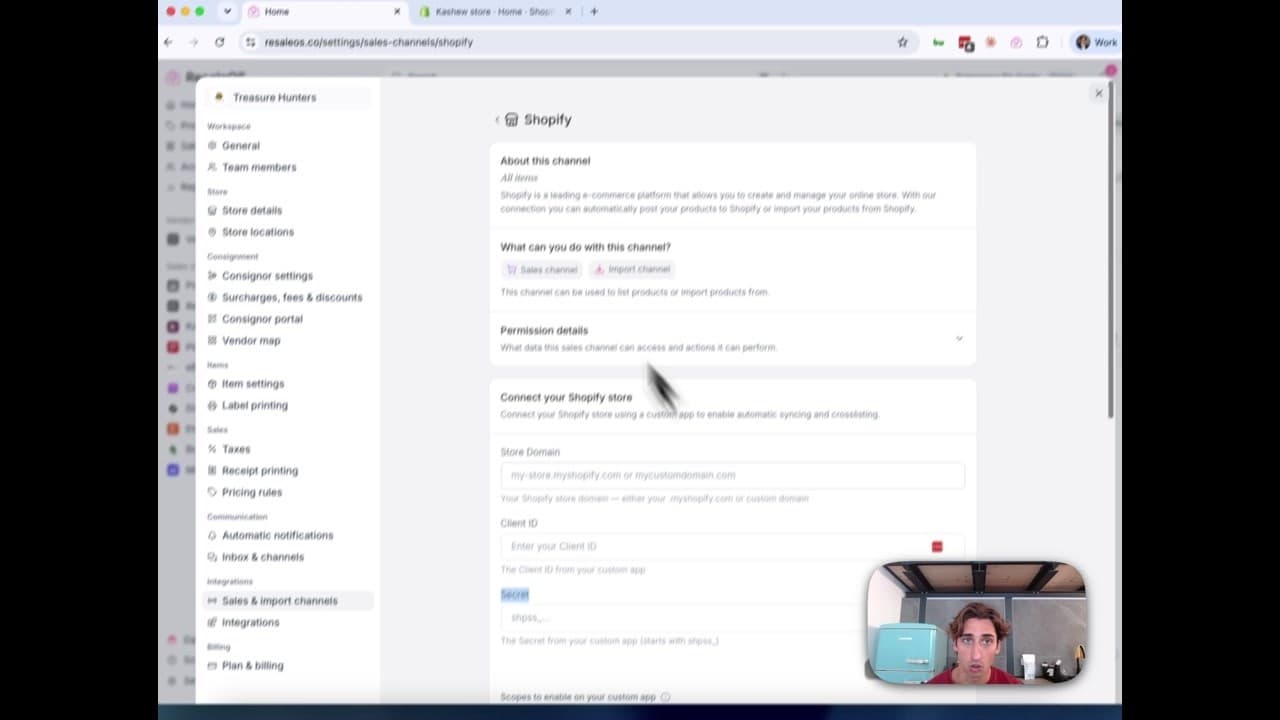
How to Connect Your Shopify Store to ResaleOS
Create a Shopify custom app, paste in the scopes ResaleOS gives you, and connect your store in a few minutes.
Print payout checks
How check printing works — bank accounts, templates & voucher stubs
Print consignor payout checks on pre-printed bank stock or blank security paper, with an itemised payout stub on the same sheet. Bank accounts and check numbering, the template editor, printing a batch, and tracking a check until it clears.
Vendoo → ResaleOS
How to move from Vendoo to ResaleOS
Moving from Vendoo takes about an hour, and nothing you have live gets re-listed or delisted. Connect the marketplaces you already sell on so your listings arrive with every photo, upload one export file from Vendoo for your drafts, labels and costs, and keep cross-listing from ResaleOS.
AI image editing
How image editing works — background removal, AI staging & batches
Remove backgrounds, add shadows, restage a product from a prompt, crop, colour-correct and watermark — on one photo or a whole batch. Which AI models run each job, what counts against your monthly photo edits, and how recipes replay your house style.
QuickBooks integration
How the QuickBooks integration works — sales, payables & payouts
Connect QuickBooks Online once and every sale, refund, consignor payable, payout and inventory movement books itself as the right kind of QuickBooks document. How to connect, what maps to what, and what deliberately does not sync.