Create a Product by Scanning a Barcode in ResaleOS
Discover how to create product listings in ResaleOS by scanning barcodes. This guide will walk you through the steps for efficient inventory management.
Create a Product by Scanning a Barcode
Use ResaleOS to create a full product listing in seconds by scanning the item’s manufacturer barcode. The system finds photos and details online, then fills in your title, brand, description, and even dimensions. Here’s how to do it.
Before you start
- Have your item handy. Find the manufacturer barcode (UPC, EAN, or ISBN) on the box, label, or back cover.
- Use a device with a camera. You can scan with your laptop/desktop camera or your phone.
- Allow camera permissions when prompted.
Step 1: Open the New Product form
- In ResaleOS, go to your inventory and click New Product.
- On the form, click Scan barcode at the top.
Step 2: Choose how you want to scan
You have two options:
- Use your computer’s camera: Keep “Scan barcode” open and point the item’s barcode at your webcam.
- Use your phone (recommended): On your computer screen, you’ll see a QR code. Scan that QR code with your phone’s camera to open the ResaleOS barcode scanner on your phone.
Using your phone is usually faster and easier to aim.
Step 3: Scan the item’s manufacturer barcode
- Hold the barcode flat and steady. Make sure there’s good lighting and the full code fits in the frame.
- When the scanner beeps or confirms, the product lookup runs. You’ll see results appear on your computer in the New Product form.
If the item was sold in another country, some details (like the title) may appear in that language. You can edit anything after import.
Step 4: Import and review the details
ResaleOS will pull in data from online sources and fill the form for you. This can include:
- Title (auto-generated from the barcode match)
- Brand and category
- Photos found online
- Description and key attributes
- Dimensions and other specs
Now review and adjust:
- Language and title: Rewrite the title in your preferred language and style, if needed.
- Photos: Keep the auto-found images for reference, but add your own photos for marketplaces that require original images.
- Condition and quantity: Set these accurately for your item.
- Price: Enter your price. You can use ResaleOS pricing tools later to adjust for each marketplace.
- Category and attributes: Confirm these look right so cross-listing maps correctly.
Step 5: Save and list
- Click Save to add the product to your inventory.
- When ready, use ResaleOS to cross-list the product to eBay, Etsy, Poshmark, Mercari, Shopify, Facebook Marketplace, and more.
Tips for faster, cleaner scans
- Use bright, even light. Avoid glare on glossy packaging.
- Fill the frame with the barcode, but keep all edges visible.
- Try a different angle if the code won’t read right away.
- If a barcode is damaged, try another copy of the item or enter the code digits manually.
- You can rescan at any time if the result isn’t what you expected.
Good to know
- Supported codes: Works with common retail barcodes like UPC, EAN, and ISBN.
- Data quality: Not every barcode has a perfect online match. Always review and edit before listing.
- Images: Online images are helpful to identify the product. Add your own photos to meet marketplace requirements and show item condition.
- Privacy: You’ll be asked to allow camera access on your device. You can revoke this permission anytime in your browser or phone settings.
What happens next
Once saved, your product is in ResaleOS with structured data for titles, attributes, and shipping dimensions. This speeds up cross-listing, shipping label selection, and pricing across marketplaces.
Frequently asked questions
What types of barcodes can I scan?
You can scan manufacturer barcodes like UPC, EAN, or ISBN to create product listings.
Do I need a specific device to scan barcodes?
You can use either a laptop/desktop camera or your mobile phone to scan barcodes.
Can I edit the details after scanning?
Yes, you can review and edit the title, description, and other details after the product information is imported.
What happens if the product was sold in another country?
If the item was sold in another country, some details may appear in that language, but you can edit them as needed.
How do I list the product after creating it?
After saving the product, you can use ResaleOS to cross-list it on different marketplaces.
Related Articles
The register
How the point of sale works — cart, tenders, drawers & receipts
The whole register, in the order a sale moves through it: scanning and pricing the cart, tax and surcharges, split tender and change due, card readers, layaway and gift cards, then drawer counts, register lock and receipts.
Rose → ResaleOS
How to move from Rose (Consignor Connect) to ResaleOS
Free, done-for-you move from Rose to ResaleOS. Rose runs on Square, so you connect Square with one click and your items, photos and sales arrive on their own. Rose's Contract List brings every consignor, split and balance, and each item is linked back to its consignor. Live by lunch, with your Square register still ringing.
Website builder
How the ResaleOS website builder works
Build a real website around your ResaleOS shop — clone your old site, start from a template, or describe it to AI. Plus favicon, social sharing, SEO and search-engine verification.
Add a video
How to add a video to a product
Upload a clip up to 500MB in almost any format; ResaleOS converts it and sends it to every channel that accepts video.
Bulk edit
How to bulk edit products
Change category, price, brand, tags, consignor or shipping details on thousands of products at once, in a spreadsheet-style grid.
Possible duplicates
How to find and merge duplicate items
Find items entered twice — same SKU, title, or photo — and merge them without losing a listing, a sale, or a consignor payout.
What's it worth?
How to find what an item is worth
Pull real sold comps and live listings from twenty-plus marketplaces and get a suggested price for any item, right from the product page.
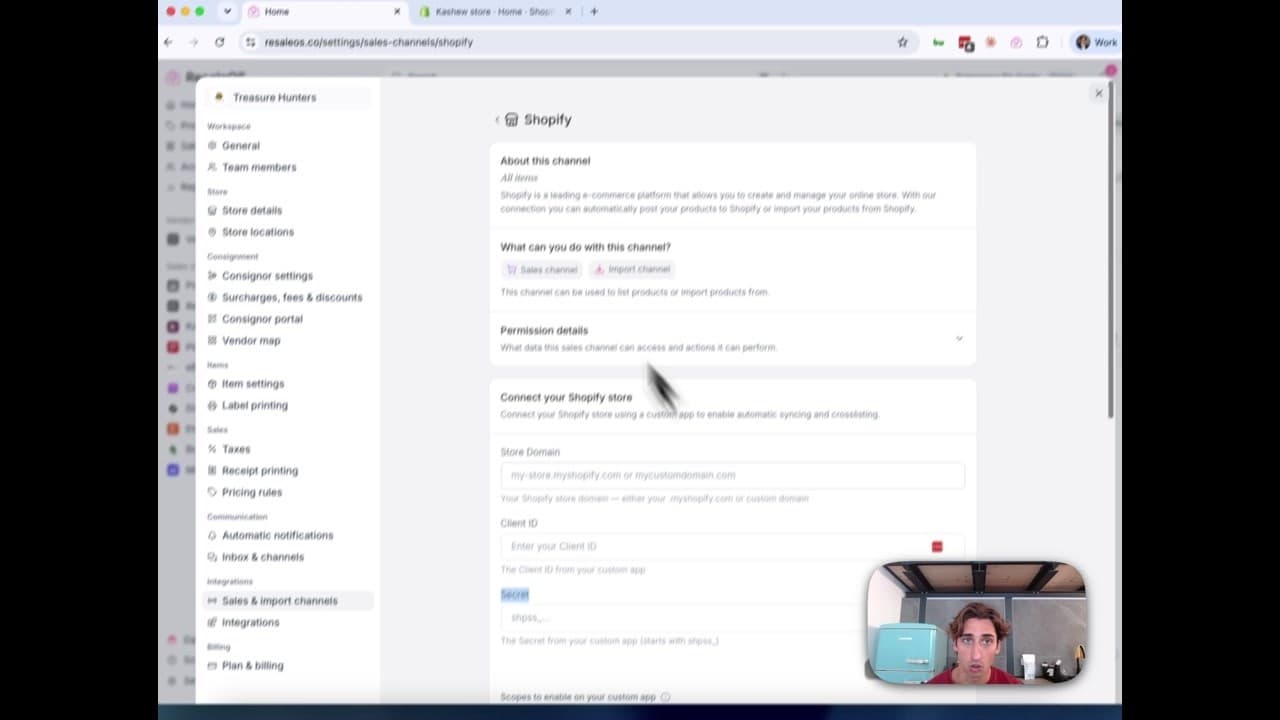
How to Connect Your Shopify Store to ResaleOS
Create a Shopify custom app, paste in the scopes ResaleOS gives you, and connect your store in a few minutes.

Get started
Put what you've learned into practice. Start listing, managing inventory, and selling across channels today.