Manage Consigner and Customer Accounts in ResaleOS
This article guides you through managing consigner and customer accounts in ResaleOS, covering account creation, viewing details, and linking products.
Manage Consigner and Customer Accounts in ResaleOS
Accounts in ResaleOS help you track the people you work with. There are two types:
- Consigners — people who give you items to sell on consignment.
- Customers — people who buy from your store or POS.
You’ll find both under the Accounts tab. Each account shows a timeline of activity, contact info, and helpful stats like balances and item counts.
Step 1: Open the Accounts tab
- Click Accounts in your ResaleOS sidebar.
- Choose Consigners or Customers at the top.
Tip: Use search to find an existing person before creating a new account to avoid duplicates.
Step 2: View an existing account
- Click a name in the list.
- Review the Timeline on the right to see recent actions (items added, updates, payouts, purchases, etc.).
- Check key info such as:
- Account balance (for consigners)
- Active items linked to the consigner
- Total items consigned
Tip: The timeline is great for quick context before a call or payout.
Step 3: Create a new consigner
- Go to Accounts › Consigners.
- Click Add Consigner (or the plus button).
- Enter basic info:
- Name (example: “Francis Duval”)
- Email (example: francis@example.com)
- Phone
- Address (optional)
- Notes (example: “Referred by G.”)
- Select Consigner terms:
- Pick your default terms, or click Add New Terms to create a new set (split, fees, hold times, etc.).
- Choose a Payout method (e.g., PayPal or Cash).
- If using PayPal, enter the PayPal email so you can pay them quickly later.
- Click Create Consigner.
After you create the account, the timeline will start logging actions tied to this consigner.
Step 4: Link products to a consigner
- Click Add Product (or open an existing draft).
- In the product form, find the Consigner field.
- Select the consigner from the dropdown.
- If they’re new, click Add Consigner right there to create them on the spot.
- Finish the product details and save.
Tip: Always link items to the correct consigner so balances and reports stay accurate.
Step 5: Work with customer accounts
- Open Accounts › Customers.
- Customers are added automatically when someone buys from your storefront or POS.
- Click a customer to view their Timeline and contact info.
- To add or update details, click Edit and enter their Email and Phone.
Why this matters: With an email or phone on file, customers receive receipts and shipping status updates automatically.
Practical tips
- Keep contact info current. It saves time on payouts and support.
- Use notes for reminders like preferred drop-off times or special pricing agreements.
- Set a default consigner terms template to speed up new account creation.
- Review the consigner’s balance and timeline before processing payouts.
What you’ll see at a glance
- Consigners: timeline, balance, active items, total items consigned, payout preferences, terms.
- Customers: timeline of purchases, contact details, and notifications sent.
That’s it. With Accounts, you can track every interaction, keep payouts organized, and make sure buyers get updates without extra work.
Frequently asked questions
What are the different types of accounts in ResaleOS?
There are two types of accounts: Consigners, who provide items for sale, and Customers, who purchase from your store.
How can I create a new consigner in ResaleOS?
To create a new consigner, go to the Accounts › Consigners section, click 'Add Consigner', and fill in the required information.
Why is it important to link products to a consigner?
Linking products to a consigner ensures accurate tracking of balances and reports related to sales and items consigned.
How can I view an existing account's activity?
Click on a name in the Accounts list to view the timeline of recent actions and key information such as account balance and active items.
What should I do before creating a new account?
Use the search feature to find an existing person to avoid creating duplicate accounts.
Related Articles
The register
How the point of sale works — cart, tenders, drawers & receipts
The whole register, in the order a sale moves through it: scanning and pricing the cart, tax and surcharges, split tender and change due, card readers, layaway and gift cards, then drawer counts, register lock and receipts.
Rose → ResaleOS
How to move from Rose (Consignor Connect) to ResaleOS
Free, done-for-you move from Rose to ResaleOS. Rose runs on Square, so you connect Square with one click and your items, photos and sales arrive on their own. Rose's Contract List brings every consignor, split and balance, and each item is linked back to its consignor. Live by lunch, with your Square register still ringing.
Website builder
How the ResaleOS website builder works
Build a real website around your ResaleOS shop — clone your old site, start from a template, or describe it to AI. Plus favicon, social sharing, SEO and search-engine verification.
Add a video
How to add a video to a product
Upload a clip up to 500MB in almost any format; ResaleOS converts it and sends it to every channel that accepts video.
Bulk edit
How to bulk edit products
Change category, price, brand, tags, consignor or shipping details on thousands of products at once, in a spreadsheet-style grid.
Possible duplicates
How to find and merge duplicate items
Find items entered twice — same SKU, title, or photo — and merge them without losing a listing, a sale, or a consignor payout.
What's it worth?
How to find what an item is worth
Pull real sold comps and live listings from twenty-plus marketplaces and get a suggested price for any item, right from the product page.
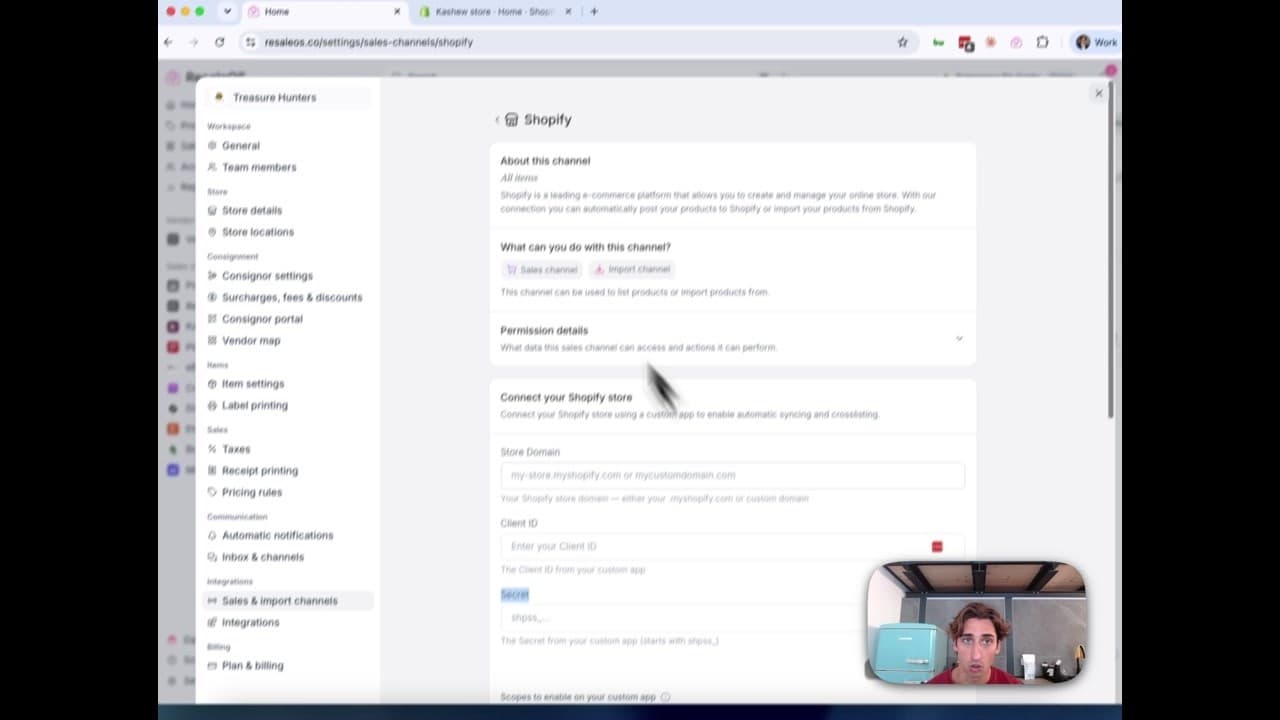
How to Connect Your Shopify Store to ResaleOS
Create a Shopify custom app, paste in the scopes ResaleOS gives you, and connect your store in a few minutes.

Get started
Put what you've learned into practice. Start listing, managing inventory, and selling across channels today.