How to Crosslist Products on ResaleOS
This guide teaches you how to cross-list products from ResaleOS to various marketplaces and set platform-specific export instructions.
Cross-list your product from ResaleOS to multiple marketplaces
This guide walks you through posting a single product from ResaleOS to several marketplaces at once. You’ll also learn how to set platform-specific “export instructions” so prices, titles, and descriptions adjust automatically per marketplace.
Step 1: Connect your marketplaces
- Open ResaleOS.
- In the left sidebar, click Sales Channels.
- Connect the marketplaces you sell on (e.g., eBay, Etsy, Poshmark, Mercari, Shopify, Facebook Marketplace, and more).
- Finish any required authentication for each channel.
Tip: Connect all the places you sell first. It makes cross-listing faster later.
Step 2: Create or open a product
- Go to your Inventory.
- Click Add Product (or open an existing product you want to cross-list).
- Upload photos. ResaleOS uses AI to suggest a title, description, and category. Edit anything you want.
- Add a price and a unique SKU (the SKU can be used in export instructions later).
- Click Save.
Step 3: Choose where to cross-list
- Open the product page.
- Find the Channels or Cross-list section.
- Turn on the toggle for each marketplace you want to post to (e.g., eBay, Etsy, Mercari, Shopify).
- Click Save or Publish.
ResaleOS will start posting in the background. You’ll see a status next to each marketplace (e.g., Posted, Pending).
Step 4: Verify your listings
- After a few seconds, refresh the product page.
- Click the marketplace links (when available) to view the live listing.
Note: Some channels may show “Pending” briefly while the AI completes the post. That’s normal—give it a moment.
Step 5: Add export instructions (platform-specific rules)
Use export instructions to automatically adjust your listing per channel—great for fees, title rules, or description tweaks.
- Go to Sales Channels in the left sidebar.
- Select a marketplace (for example, Etsy).
- Open Export Instructions.
- Type clear rules in plain language, then Save.
Examples you can use:
- “Increase product prices by 10%.” Useful to offset marketplace fees.
- “Add SKU to the product title.” Helps with order picking and inventory control.
- “Append this line to the description: ‘Please see all photos for condition.’”
The AI interprets your instructions and applies them to the right fields for that marketplace.
Step 6: Re-post or update your product with instructions
- Return to your product in Inventory.
- Toggle on the marketplace you set instructions for (if it isn’t already).
- Click Save. ResaleOS will post (or update) the listing and apply your rules.
Example: If your original price is $1,300 and your Etsy export instruction says “Increase product prices by 10%,” the Etsy listing price will post as $1,430. If you added “Add SKU to the product title,” your SKU will appear at the end of the title on Etsy.
Edits you make to the product in ResaleOS later (like photos, description, or price) can be synced across all marketplaces the item is listed on—just click Save.
Tips and notes
- Keep your SKU filled in. It’s handy for titles, packing, and reporting.
- Let the AI work. Posting runs in the background. If something shows “Pending,” refresh after a short wait.
- Use export instructions per channel. Fees and title limits differ. Adjust price, title, and description so each marketplace is optimized.
- Review your first few posts. Open the live links to confirm prices, titles, and descriptions look right.
- Change once, update everywhere. Edit the product in ResaleOS and click Save to push updates to all connected channels where it’s listed.
That’s it. With cross-listing and export instructions, you can post fast, keep listings consistent, and fine-tune each marketplace automatically.
Frequently asked questions
What is cross-listing?
Cross-listing is the process of posting a single product to multiple online marketplaces simultaneously.
How do I connect my marketplaces in ResaleOS?
Open ResaleOS, click on 'Sales Channels' in the sidebar, and follow the prompts to authenticate your marketplaces.
Can I customize my product listings for each marketplace?
Yes, you can use export instructions to adjust prices, titles, and descriptions specifically for each platform.
What if my listing shows 'Pending'?
A 'Pending' status is normal while the AI completes the posting process; refresh the page after a few moments.
How can I verify my listings after cross-listing?
Refresh the product page and click on the marketplace links to view the live listings.
Related Articles
The register
How the point of sale works — cart, tenders, drawers & receipts
The whole register, in the order a sale moves through it: scanning and pricing the cart, tax and surcharges, split tender and change due, card readers, layaway and gift cards, then drawer counts, register lock and receipts.
Rose → ResaleOS
How to move from Rose (Consignor Connect) to ResaleOS
Free, done-for-you move from Rose to ResaleOS. Rose runs on Square, so you connect Square with one click and your items, photos and sales arrive on their own. Rose's Contract List brings every consignor, split and balance, and each item is linked back to its consignor. Live by lunch, with your Square register still ringing.
Website builder
How the ResaleOS website builder works
Build a real website around your ResaleOS shop — clone your old site, start from a template, or describe it to AI. Plus favicon, social sharing, SEO and search-engine verification.
Add a video
How to add a video to a product
Upload a clip up to 500MB in almost any format; ResaleOS converts it and sends it to every channel that accepts video.
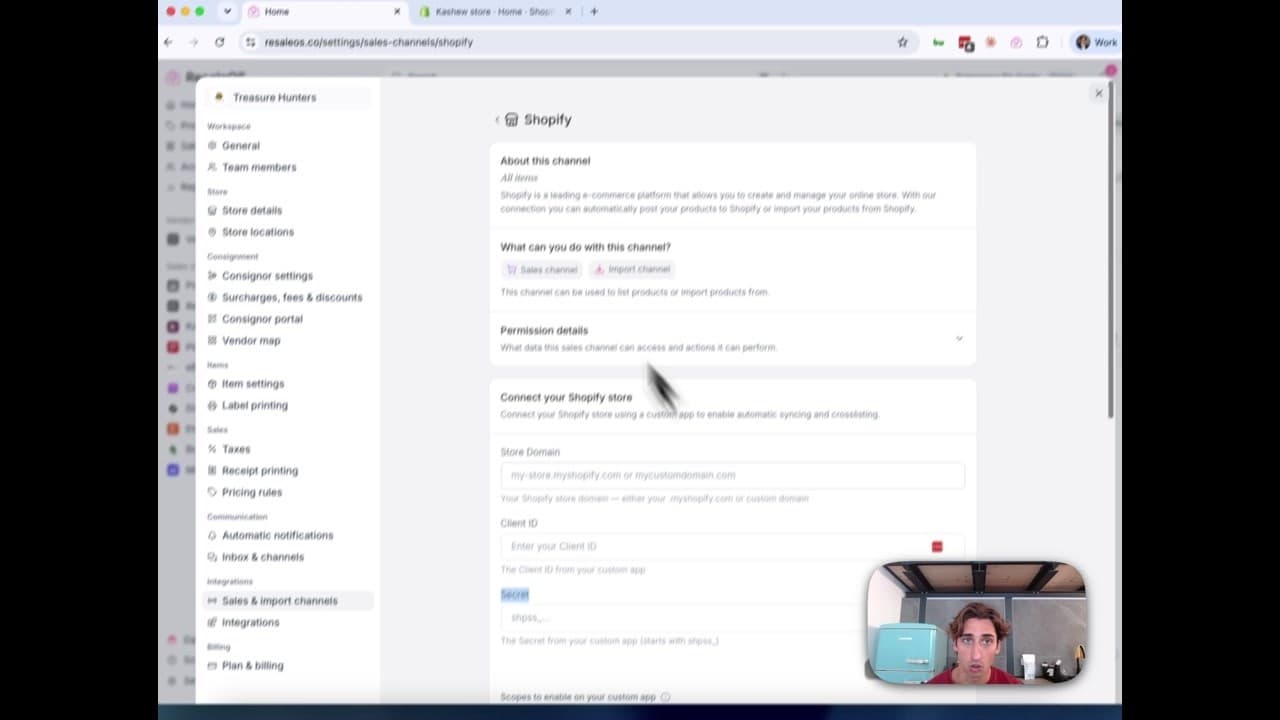
How to Connect Your Shopify Store to ResaleOS
Create a Shopify custom app, paste in the scopes ResaleOS gives you, and connect your store in a few minutes.
Vendoo → ResaleOS
How to move from Vendoo to ResaleOS
Moving from Vendoo takes about an hour, and nothing you have live gets re-listed or delisted. Connect the marketplaces you already sell on so your listings arrive with every photo, upload one export file from Vendoo for your drafts, labels and costs, and keep cross-listing from ResaleOS.
AI image editing
How image editing works — background removal, AI staging & batches
Remove backgrounds, add shadows, restage a product from a prompt, crop, colour-correct and watermark — on one photo or a whole batch. Which AI models run each job, what counts against your monthly photo edits, and how recipes replay your house style.
What we cover in a demo
ResaleOS overview — what we cover in a demo call
The same walkthrough we give on a live demo call, recorded so you can watch it now: inventory, building a listing from photos, the pricing engine, crosslisting, sales from every channel, your storefront, consignors and what it costs. Seven minutes, full transcript included.

Get started
Put what you've learned into practice. Start listing, managing inventory, and selling across channels today.