How to Create a Sale in ResaleOS
This guide provides a step-by-step process for creating a sale in ResaleOS, including adding products, setting taxes, and handling payments.
Create a point-of-sale sale in ResaleOS
This guide walks you through creating a sale from the Sales tab, adding items, customers, taxes, shipping, taking payment, and booking the shipment. Follow the steps in order. Simple and fast.
Step 1: Start a new sale
- Open the Sales tab in ResaleOS.
- Click the New Sale button.
Step 2: Add products to the cart
- Browse your catalog and select one or more products to add to the sale. Click a product to add it.
- Or click Add custom item to create a one-off line item (handy for things not in your catalog).
Step 3: Add a customer (optional)
- Click the customer field to choose an existing customer or click Add new to create one.
- You can leave this blank and still complete the sale. It’s not required.
Note: You’ll need a destination address to book shipping. If you leave the customer off now, you can add or edit it before you ship.
Step 4: Set taxes
- By default, ResaleOS can auto-calculate sales tax for you.
- To override, enter a custom tax percentage. The sale total updates instantly.
Step 5: Add shipping and compare rates
- Click Add shipping to open the built-in shipping calculator.
- Review the live rates. ResaleOS compares options across carriers (availability varies by route and package specs). Integrated solutions include FedEx, UShip, and GoShare.
- Select your carrier and choose a service level (for example, ground vs. express).
- Click Update Sale to add the shipping charge to the order total. This lets you charge the buyer the exact amount.
Tip: Accurate weight and dimensions matter. Even small changes can affect which services are available and the price you see.
Step 6: Collect payment
- Click Continue to go to payment.
- If you have a POS terminal connected (e.g., Square or Stripe), take the card payment right from your terminal.
- No terminal? Choose another method, like Cash.
- Need to split tender? You can split the total (for example, part cash and part card).
- Click Complete Sale.
Step 7: Send or print the receipt
- When the sale completes, ResaleOS automatically emails a receipt to the customer on file.
- Click Print to generate a printable receipt with your logo.
Step 8: Book and track the shipment
- From the sale page, click Book shipment to purchase a label directly in ResaleOS.
- After booking, you’ll receive the shipping label immediately, and the customer gets a tracking link.
- Track delivery status from the sale in ResaleOS—everything stays in one place.
Important: You are charged when you book a label. Only click Book shipment when the order is packed and ready to go.
Tips and notes
- Customer optional, shipping not: You can complete a sale without a customer, but you’ll need a ship-to address to book a label.
- Rates vary: Carrier options change by destination, package size/weight, and service level. If you don’t see a carrier, try adjusting dimensions or service speed.
- Double-check details: Confirm the address, item dimensions, and weight before booking to avoid surcharges or delays.
- Save time later: Add frequently used customers now so receipts, shipping, and follow-ups are one click next time.
- Keep it organized: After you complete a sale, use the Sales tab to view the order, print the receipt, and manage shipping from the same place.
Frequently asked questions
How do I start a new sale in ResaleOS?
Open the Sales tab and click the 'New Sale' button to begin.
Can I add a custom item to the sale?
Yes, you can click 'Add custom item' to create a one-off line item not in your catalog.
Is adding a customer required for completing a sale?
No, you can complete the sale without adding a customer, but you'll need an address for shipping.
How can I calculate shipping rates?
Click 'Add shipping' to access the shipping calculator, which compares rates across different carriers.
What payment methods are available?
You can take payments via connected POS terminals, cash, or split tender between different methods.
Related Articles
The register
How the point of sale works — cart, tenders, drawers & receipts
The whole register, in the order a sale moves through it: scanning and pricing the cart, tax and surcharges, split tender and change due, card readers, layaway and gift cards, then drawer counts, register lock and receipts.
Rose → ResaleOS
How to move from Rose (Consignor Connect) to ResaleOS
Free, done-for-you move from Rose to ResaleOS. Rose runs on Square, so you connect Square with one click and your items, photos and sales arrive on their own. Rose's Contract List brings every consignor, split and balance, and each item is linked back to its consignor. Live by lunch, with your Square register still ringing.
Website builder
How the ResaleOS website builder works
Build a real website around your ResaleOS shop — clone your old site, start from a template, or describe it to AI. Plus favicon, social sharing, SEO and search-engine verification.
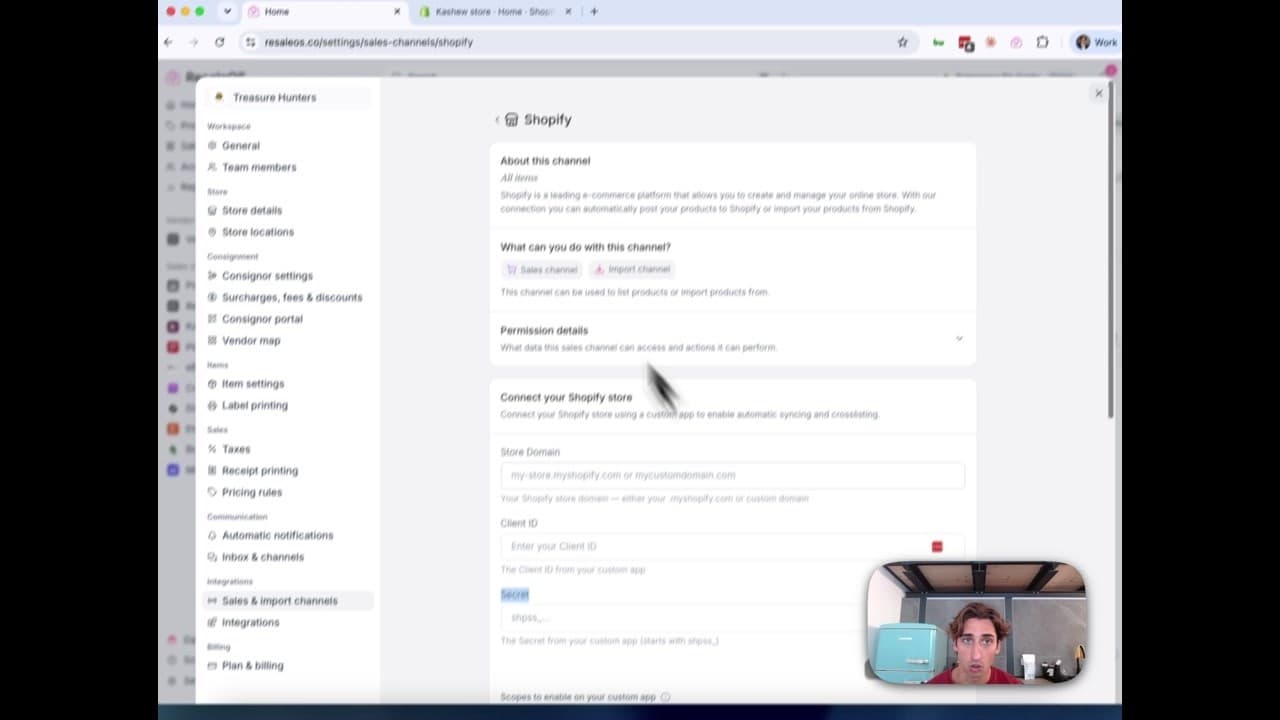
How to Connect Your Shopify Store to ResaleOS
Create a Shopify custom app, paste in the scopes ResaleOS gives you, and connect your store in a few minutes.
Vendoo → ResaleOS
How to move from Vendoo to ResaleOS
Moving from Vendoo takes about an hour, and nothing you have live gets re-listed or delisted. Connect the marketplaces you already sell on so your listings arrive with every photo, upload one export file from Vendoo for your drafts, labels and costs, and keep cross-listing from ResaleOS.
AI image editing
How image editing works — background removal, AI staging & batches
Remove backgrounds, add shadows, restage a product from a prompt, crop, colour-correct and watermark — on one photo or a whole batch. Which AI models run each job, what counts against your monthly photo edits, and how recipes replay your house style.
What we cover in a demo
ResaleOS overview — what we cover in a demo call
The same walkthrough we give on a live demo call, recorded so you can watch it now: inventory, building a listing from photos, the pricing engine, crosslisting, sales from every channel, your storefront, consignors and what it costs. Seven minutes, full transcript included.
Import stock photos
How to import stock photos from the web
Type a product title and ResaleOS finds the same item on eBay, Poshmark, Mercari, Etsy and more — then lets you import their photos in one tap. Plus barcode lookup, Upload by URL, plan limits, and when to shoot your own photos instead.

Get started
Put what you've learned into practice. Start listing, managing inventory, and selling across channels today.