How to Edit and Organize Product Photos in Photo Studio
This article provides a comprehensive guide on how to upload, edit, and organize your product photos using Photo Studio.
Step 1: Open Photo Studio
From the left navigation, click Products, then click Photo Studio. This is where you’ll upload, edit, and organize your product photos.
Step 2: Add your photos
Drag and drop images into Photo Studio, or click Upload to choose files from your computer. You can add one or many at once. Your images will appear as thumbnails.
Step 3: Edit a single image
Basic adjustments
- Open an image by clicking on it.
- Use tools like Crop, Resize, Rotate, Straighten, Flip, and Brightness to clean up the shot.
- Use Draw to circle flaws, highlight features, or add quick notes.
Remove or change the background
- Click Background Remover.
- Choose a background color (white and light gray work great for marketplaces).
- Apply to preview the cutout.
Add realistic shadows
- Toggle Shadow to give the item depth and a natural look.
- Adjust intensity if available, then Apply.
Stage the photo with AI
- Click AI Edit or Stage with AI.
- Type a prompt like “stage in a sunny furniture showroom.”
- Apply to let AI transform the scene.
Add your watermark
- Click Watermark and upload your logo (if you haven’t already).
- Place it (bottom-right is common) and size it appropriately.
- Click Apply.
When you’re happy, click Save to overwrite the image, or Save as New Image to keep both the original and the edited version.
Step 4: Save time with Recipes
Photo Studio remembers the edits you just made as a Recent Recipe (for example: remove background to white + add watermark). You can apply this to other photos in one go.
Apply a recipe in bulk
- From the gallery, select multiple images (use the checkboxes).
- Click Apply Recipe and choose your recent recipe.
- Photo Studio will run the same edits on all selected images.
Note: Background removal works best on clear product shots. Extreme close-ups or low-contrast edges may need manual touch-up. If a result looks off, delete the edit or re-run on a different image.
Step 5: Organize with Sets (folders)
- Click New Set and name it (e.g., “Accent Chairs”).
- Select the images you want to move.
- Click Move to Set and choose your new set.
Use sets to group by product type, collection, or listing workflow.
Step 6: Create a listing from your images
- Select one or more edited images.
- Click Create Listing.
- You’ll land on the listing page with your images already attached. ResaleOS AI will generate titles, descriptions, and categories for you. Review, tweak, and you’re ready to cross-list to marketplaces.
Step 7: Download or export images
- Select the images you’ve edited.
- Click Download to export them for use outside ResaleOS.
Tips and best practices
- Keep a clean, white background for marketplaces that prefer it (helps search and consistency).
- Use Save as New Image to preserve originals for future edits or A/B testing.
- Create separate recipes for different product lines (e.g., furniture vs. apparel).
- After background removal, zoom in and spot-check edges and shadows for realism.
- Keep watermarks small and in a corner so they don’t distract buyers.
- Write clear AI prompts (e.g., “minimal studio, soft shadow, white floor”) for more consistent staging results.
Frequently asked questions
How do I upload photos to Photo Studio?
You can drag and drop images into Photo Studio or click the Upload button to select files from your computer.
What editing tools are available for my images?
You can use tools like Crop, Rotate, Brightness, and Background Remover to enhance your images.
Can I apply the same edits to multiple images at once?
Yes, you can use the Recent Recipe feature to apply the same edits to multiple images simultaneously.
How do I organize my images in Photo Studio?
You can create Sets (folders) to group your images by product type, collection, or workflow.
Can I create a listing from my edited images?
Yes, after editing, select your images and click Create Listing to automatically attach them to a new listing page.
Related Articles
The register
How the point of sale works — cart, tenders, drawers & receipts
The whole register, in the order a sale moves through it: scanning and pricing the cart, tax and surcharges, split tender and change due, card readers, layaway and gift cards, then drawer counts, register lock and receipts.
Rose → ResaleOS
How to move from Rose (Consignor Connect) to ResaleOS
Free, done-for-you move from Rose to ResaleOS. Rose runs on Square, so you connect Square with one click and your items, photos and sales arrive on their own. Rose's Contract List brings every consignor, split and balance, and each item is linked back to its consignor. Live by lunch, with your Square register still ringing.
Website builder
How the ResaleOS website builder works
Build a real website around your ResaleOS shop — clone your old site, start from a template, or describe it to AI. Plus favicon, social sharing, SEO and search-engine verification.
Add a video
How to add a video to a product
Upload a clip up to 500MB in almost any format; ResaleOS converts it and sends it to every channel that accepts video.
Bulk edit
How to bulk edit products
Change category, price, brand, tags, consignor or shipping details on thousands of products at once, in a spreadsheet-style grid.
Possible duplicates
How to find and merge duplicate items
Find items entered twice — same SKU, title, or photo — and merge them without losing a listing, a sale, or a consignor payout.
What's it worth?
How to find what an item is worth
Pull real sold comps and live listings from twenty-plus marketplaces and get a suggested price for any item, right from the product page.
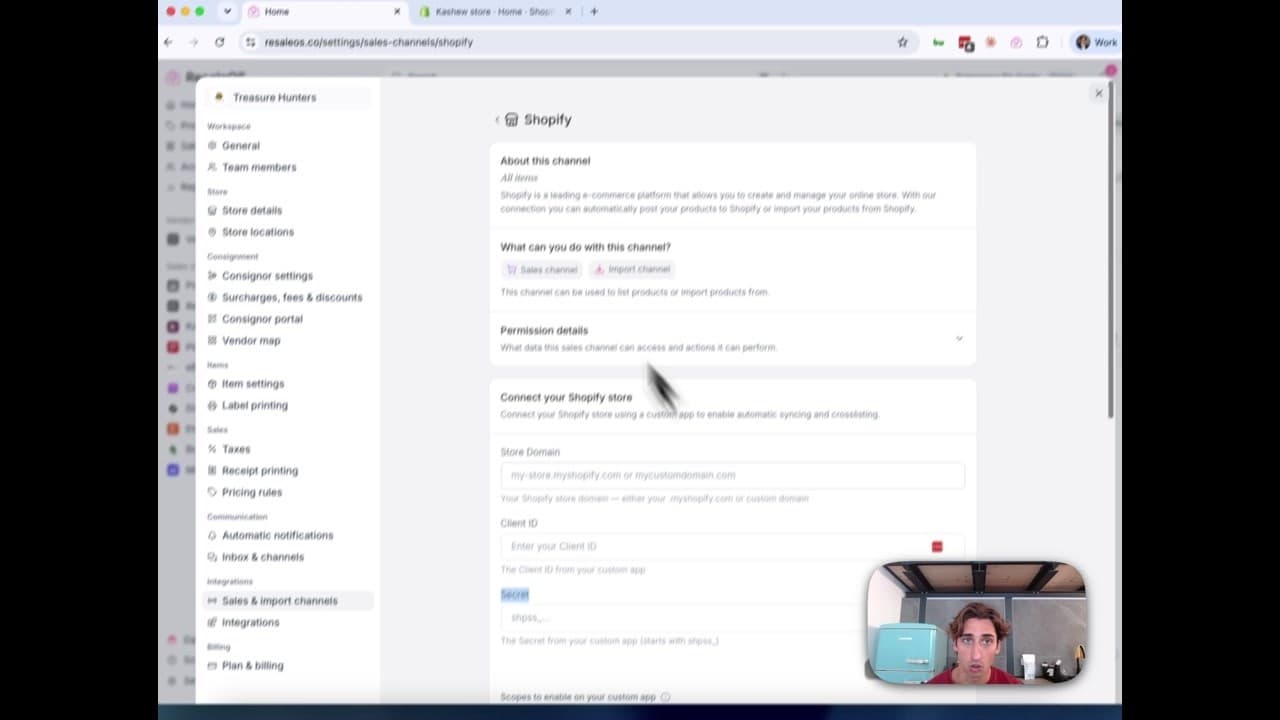
How to Connect Your Shopify Store to ResaleOS
Create a Shopify custom app, paste in the scopes ResaleOS gives you, and connect your store in a few minutes.

Get started
Put what you've learned into practice. Start listing, managing inventory, and selling across channels today.