How to set up your domain
Every ResaleOS storefront ships with a free address at your-store.myresale.co. When you're ready to make it yours, connect a domain you own — shop.yourbrand.com or yourbrand.com — and your whole store moves there with HTTPS issued automatically. Available on the Reseller and Pro plans.
Open Settings → Sales channels → Storefront → Web address
This page manages both addresses: your free ResaleOS store URL (the /s/ slug — editable on every plan) and your own domain. If you haven't launched the storefront yet, start with setting up your online storefront first.
Enter the domain you own and hit Connect
Type it exactly as customers should reach it — a subdomain like shop.yourbrand.com or a root domain like yourbrand.com (multi-part endings like yourbrand.co.uk work too). Don't have one yet? Buy it from any registrar — GoDaddy, Namecheap, Cloudflare, Porkbun — usually $10–15/year, then come back and connect it.
Add the DNS records — or let us add them for you
As soon as you connect, ResaleOS shows the exact records to add at your domain provider, with copy buttons for every value. If your DNS is hosted somewhere that supports one-click setup (like GoDaddy), you'll see a Set up automatically button instead — sign in, approve, and the records are added for you.
Subdomain ( shop.yourbrand.com) — one CNAME record:
Type | Name / Host | Value |
|---|---|---|
| CNAME | shop | cname.vercel-dns.com |
Root domain ( yourbrand.com) — one or more A records (add every one shown on your page):
Type | Name / Host | Value |
|---|---|---|
| A | @ | 76.76.21.21 |
These are examples — always use the records shown on your own Web address page, since values can differ per domain. If your domain has been used on another platform before, you may also see a TXT record that proves you own it; add that one too.
Not sure where to click at your provider? Pick your registrar on the page and follow the tailored steps — we auto-detect it from your domain's nameservers and deep-link straight into its DNS editor. Guides included for:
GoDaddy · Namecheap · Cloudflare · Square · Squarespace / Google Domains · Wix · Hostinger · IONOS · Porkbun · NameSilo · Amazon Route 53 · Bluehost
Using Cloudflare? Turn the orange cloud off
Set the record's proxy status to DNS only (grey cloud), not Proxied. The SSL certificate is issued directly for your domain, and Cloudflare's proxy blocks that — the most common reason a domain gets stuck on “Verifying”.
Wait for verification — HTTPS is automatic
The status badge walks through Awaiting DNS → Verifying & issuing SSL → Live. While the page is open we re-check every 15 seconds (there's a Re-check button too). Most domains go live within minutes; DNS propagation can occasionally take a few hours. The SSL certificate is issued and renewed automatically — nothing to buy, upload, or remember.
Share your new address — the old one still works
Once live, the domain becomes your store's primary address — product pages, checkout, and customer accounts all move with it. Your free your-store.myresale.co address keeps serving your store, and older resaleos.co/s/your-store links redirect to the domain, so nothing you've already shared breaks. Just leave the DNS records in place: remove them and the domain stops resolving.
Frequently asked
Do I buy the domain from you?
No — ResaleOS doesn't sell domains. Buy from any registrar (GoDaddy, Namecheap, Cloudflare, Porkbun, …) and connect it here. You keep full ownership of the domain.
What plan do I need?
Custom domains are included on Reseller and Pro. The free /s/your-store address is available on every plan.
Root domain or subdomain?
Both work. Many stores use shop.yourbrand.com so the root can keep pointing at an existing website; if the storefront is your main site, connect the root.
What about SSL / HTTPS?
Automatic. A certificate is issued as soon as DNS verifies and renews itself forever after — no certificate to buy or upload.
How long does DNS take?
Usually minutes. Some providers set long TTLs (NameSilo is a known offender), so allow up to a few hours before troubleshooting.
Will my email break?
No. Setup only adds A / CNAME / TXT records for web traffic — MX records are never touched, so email on the domain keeps working.
What's “Set up automatically”?
Domain Connect — an open standard some DNS providers support. When we detect it, one click opens your provider, you approve, and the records are created for you. No copy-pasting.
Does the old link break?
No. your-store.myresale.co keeps serving your store, and older resaleos.co/s/your-store links redirect to the domain — so old Instagram bios, QR codes, and business cards keep working.
Can I disconnect later?
Yes, anytime — hit Disconnect domain and the storefront instantly falls back to its resaleos.co address. You can reconnect the same or a different domain whenever.
Stuck on “Awaiting DNS” or “Action needed”?
- Check the record values — the most common miss is a typo or adding the record on the wrong domain. Use the copy buttons.
- Don’t skip the
wwwrecord — if your site used to live atwww.yourbrand.com, that’s the address on every bookmark, business card and old link. Your old host almost certainly left awwwrecord behind, so replace it rather than adding a second one — most registrars won’t let both exist. - Root domains need every A record shown on the page — if we list more than one IP, add them all.
- Cloudflare proxy on? Switch the record to DNS only (grey cloud) — see the callout above.
- Old records in the way — delete any existing A, AAAA, or CNAME records on the same name (e.g. a registrar “parking” page) before adding ours.
- Give it time, then Re-check — propagation can lag a few hours. Still stuck after that? Email info@resaleos.co with your domain and we'll take a look at the DNS with you.
Put your brand on the door
Start a store on the free resaleos.co address today, and connect your own domain in five minutes whenever you're ready — we'll even add the DNS records for you on supported registrars.
Frequently asked questions
Can I use my own domain with ResaleOS?
Yes. On the Reseller and Pro plans you can point a domain you own — a subdomain like shop.yourbrand.com or a root domain like yourbrand.com — at your ResaleOS storefront. HTTPS is issued and renewed automatically, and your free your-store.myresale.co address keeps working as a redirect.
Do I have to buy the domain from ResaleOS?
No — ResaleOS doesn’t sell domains. Buy one from any registrar (GoDaddy, Namecheap, Cloudflare, Porkbun, …), then connect it under Settings → Sales channels → Storefront → Web address.
What DNS records do I need to add?
For a subdomain like shop.yourbrand.com, one CNAME record pointing at ResaleOS. For a root domain like yourbrand.com, one or more A records. The Web address page shows the exact records for your domain with copy buttons, and occasionally an extra TXT record to prove ownership. On supported registrars like GoDaddy, the “Set up automatically” button adds them for you.
How long does it take for a custom domain to go live?
Usually a few minutes after the DNS records are added, but DNS propagation can take up to a few hours depending on your provider and TTL settings. ResaleOS re-checks automatically every 15 seconds while the page is open and issues the SSL certificate as soon as the records resolve.
Will connecting a domain affect my email?
No. Setup only adds A, CNAME, or TXT records for web traffic — your MX (email) records are never touched, so email on the domain keeps working exactly as before.
Related Articles
Rose → ResaleOS
How to move from Rose (Consignor Connect) to ResaleOS
Free, done-for-you move from Rose to ResaleOS. Rose runs on Square, so you connect Square with one click and your items, photos and sales arrive on their own. Rose's Contract List brings every consignor, split and balance, and each item is linked back to its consignor. Live by lunch, with your Square register still ringing.
Website builder
How the ResaleOS website builder works
Build a real website around your ResaleOS shop — clone your old site, start from a template, or describe it to AI. Plus favicon, social sharing, SEO and search-engine verification.
Add a video
How to add a video to a product
Upload a clip up to 500MB in almost any format; ResaleOS converts it and sends it to every channel that accepts video.
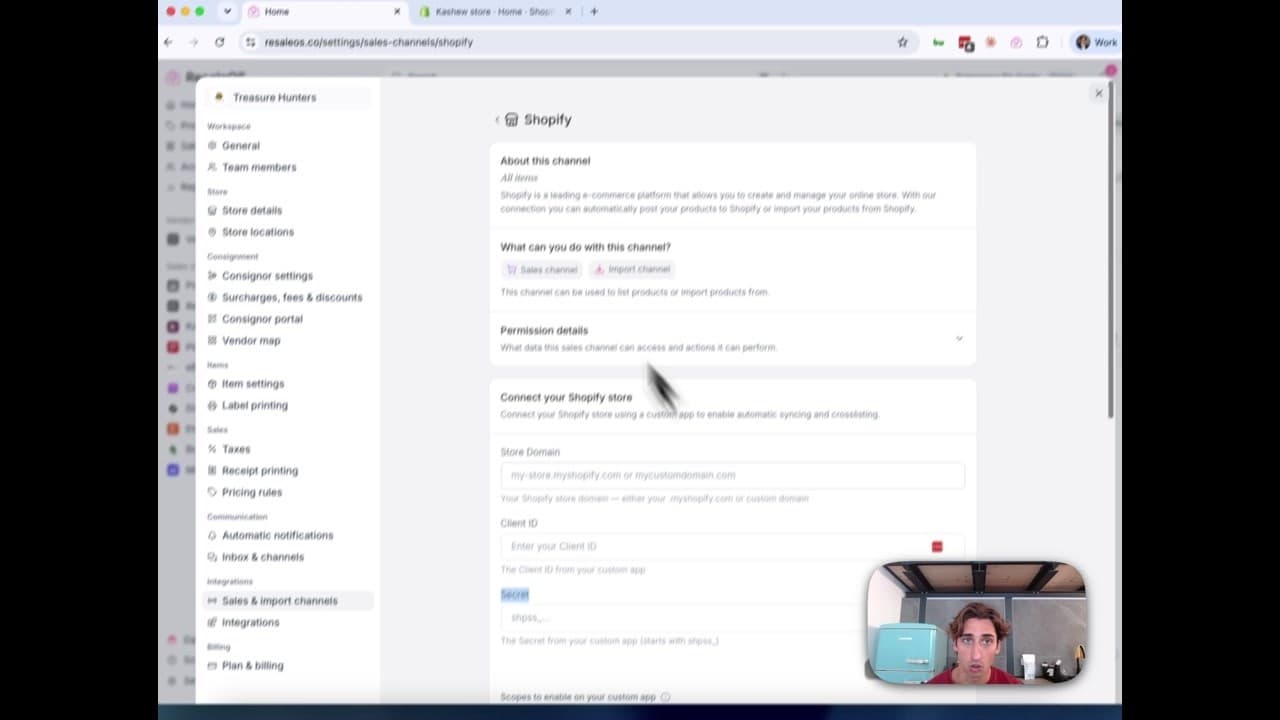
How to Connect Your Shopify Store to ResaleOS
Create a Shopify custom app, paste in the scopes ResaleOS gives you, and connect your store in a few minutes.
Vendoo → ResaleOS
How to move from Vendoo to ResaleOS
Moving from Vendoo takes about an hour, and nothing you have live gets re-listed or delisted. Connect the marketplaces you already sell on so your listings arrive with every photo, upload one export file from Vendoo for your drafts, labels and costs, and keep cross-listing from ResaleOS.
QuickBooks integration
How the QuickBooks integration works — sales, payables & payouts
Connect QuickBooks Online once and every sale, refund, consignor payable, payout and inventory movement books itself as the right kind of QuickBooks document. How to connect, what maps to what, and what deliberately does not sync.
Custom product fields
How to create custom product fields
Add your own fields to every product — serial number, country of manufacture, author, shelf location. Create them under Item settings, fill them in on the product form or in bulk, and send them out to your sales channels on every export.
Common questions, answered
Common questions — imports, marketplace limits & getting help
Quick answers to the questions we hear most: importing products from a CSV or spreadsheet, why Mercari listings ship free, Vinted availability, fixing Shopify permission pop-ups, backfilling past sales, eBay fees, the referral program, and where to get help.