How to Print Product Labels in ResaleOS
This guide covers how to print individual and bulk product labels in ResaleOS, including setting a default label template.
Print Product Labels in ResaleOS (ROS)
Use labels to tag inventory fast. You can print a single label from a product, bulk-print from the Products tab, and save a default label template so every label looks the same. Follow the steps below.
Before you start: check your printer
- Connect your label or regular printer to your computer.
- Make sure the printer is powered on and selected in your browser’s print dialog.
- Load the right label stock or paper.
Step 1: Print a single product label
- Open the product you want to label. This takes you to the product page.
- Click the Print label button.
- If the product has fields you want on the label (like brand or size), add/confirm them now. If those fields aren’t set on the product, they won’t show.
- Click Print. Your browser’s print window will open.
- Choose your printer and click Print in the dialog.
Step 2: Bulk-print labels from the Products tab
- Go to the Products tab.
- Select the checkboxes next to the products you want labels for.
- Click Labels. ResaleOS will create a list of labels for your selection.
- Click Print to open all labels in a printable view.
- In your browser’s print window, choose your printer and print.
Tip: Bulk printing is great after a photo or intake session. Select everything you just added and print in one go.
Step 3: Create and set a default label template
Templates control size, layout, and what details show. Set one default to speed things up.
- Open Settings in ResaleOS.
- Go to the label templates area (labeled Labels or similar).
- Click Create new (or New template).
- Name your template (example: “Label v2”).
- Set the Width and Height to match your label stock.
- Choose how many Labels per row to print.
- Select the details you want on each label. You can include the product fields you track. If a field is empty on a product, it won’t appear on the label.
- Use the on-screen Preview to check spacing and fit.
- Turn on Set as default label.
- Click Create (or Save).
Now, this template will be used automatically when you print labels unless you choose another.
Step 4: Use your default template on any product
- Open a product page.
- Click Print label.
- ResaleOS will use your new default template automatically.
- Click Print.
Tips for clean, accurate prints
- Match size: Set template width/height to your actual label size.
- Preview first: Use the template preview to avoid cutoffs.
- Browser settings: In the print dialog, set scale to 100% (or Actual Size). Turn off “Fit to page” and headers/footers.
- Margins: If text is cut off, set margins to None or Minimum in the print dialog.
- Thermal printers: Use black text only and high-contrast content for best results.
- Test one page: Print a single label sheet to confirm alignment before bulk runs.
Notes and best practices
- Only fields that exist on a product will print. If you want brand or size on the label, add those to the product first.
- Create different templates for different label stock. Switch as needed when you change rolls or sheets.
- When bulk printing, double-check your selection in the Products tab before printing.
- If the print button doesn’t respond, make sure your printer is connected and recognized by your OS/browser.
Pro tip: Set your default template once and print labels in two clicks from any product: Print label → Print.
Frequently asked questions
How do I print a single product label?
Open the product page, click the 'Print label' button, confirm any fields, and then click 'Print' in your browser.
Can I bulk print labels for multiple products?
Yes, select the products in the 'Products' tab, click 'Labels', and then click 'Print' to print all selected labels.
How do I create a default label template?
In the Settings of ResaleOS, go to the label templates area, create a new template, and set it as the default.
What should I check before printing labels?
Ensure your printer is connected, powered on, and the correct label stock or paper is loaded.
Can I customize the information on my labels?
Yes, you can choose the details to include on each label based on the product fields you track.
Related Articles
The register
How the point of sale works — cart, tenders, drawers & receipts
The whole register, in the order a sale moves through it: scanning and pricing the cart, tax and surcharges, split tender and change due, card readers, layaway and gift cards, then drawer counts, register lock and receipts.
Rose → ResaleOS
How to move from Rose (Consignor Connect) to ResaleOS
Free, done-for-you move from Rose to ResaleOS. Rose runs on Square, so you connect Square with one click and your items, photos and sales arrive on their own. Rose's Contract List brings every consignor, split and balance, and each item is linked back to its consignor. Live by lunch, with your Square register still ringing.
Website builder
How the ResaleOS website builder works
Build a real website around your ResaleOS shop — clone your old site, start from a template, or describe it to AI. Plus favicon, social sharing, SEO and search-engine verification.
Add a video
How to add a video to a product
Upload a clip up to 500MB in almost any format; ResaleOS converts it and sends it to every channel that accepts video.
Bulk edit
How to bulk edit products
Change category, price, brand, tags, consignor or shipping details on thousands of products at once, in a spreadsheet-style grid.
Possible duplicates
How to find and merge duplicate items
Find items entered twice — same SKU, title, or photo — and merge them without losing a listing, a sale, or a consignor payout.
What's it worth?
How to find what an item is worth
Pull real sold comps and live listings from twenty-plus marketplaces and get a suggested price for any item, right from the product page.
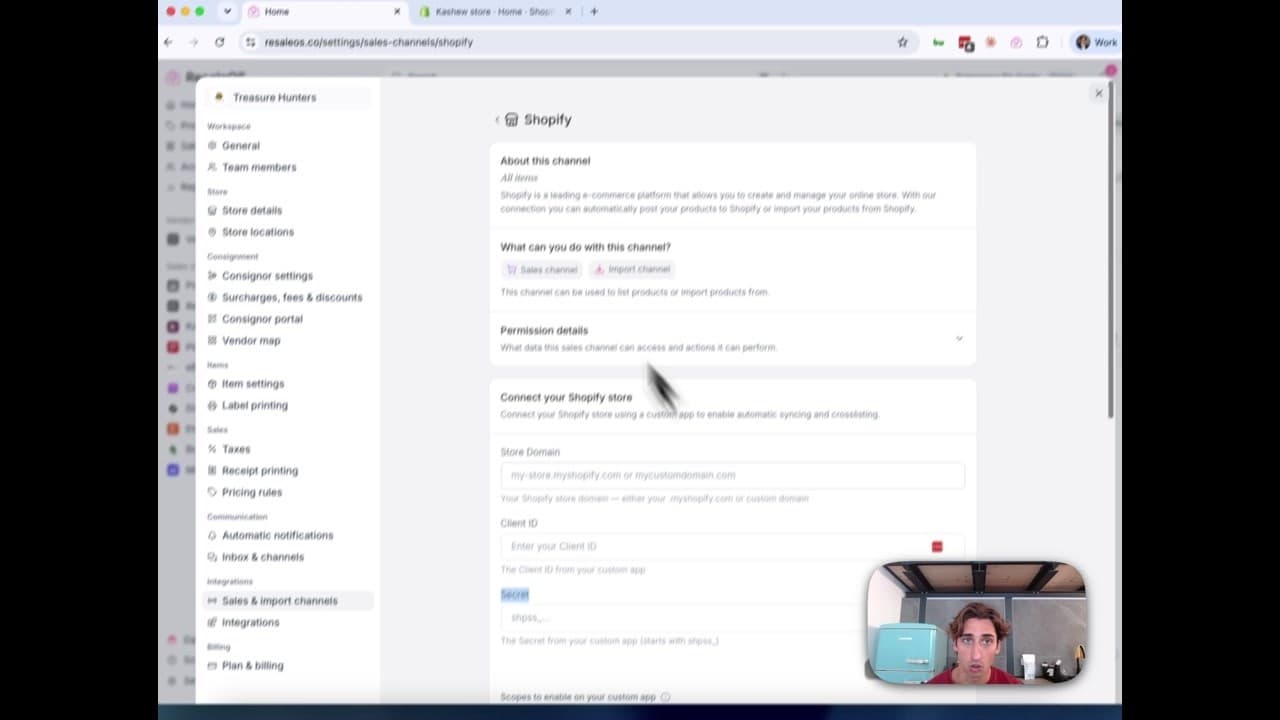
How to Connect Your Shopify Store to ResaleOS
Create a Shopify custom app, paste in the scopes ResaleOS gives you, and connect your store in a few minutes.

Get started
Put what you've learned into practice. Start listing, managing inventory, and selling across channels today.